
I’m not going to stand here and tell you I’m an artist. I’m not. I’m a product manager who decided, about thirteen months ago, that I wanted to get better at drawing my kids’ faces. It has not gone as planned. But in that time, I’ve owned two Ugee pen displays, a Ugee tablet, and I’ve broken a stylus in half, so I feel qualified to give you the real rundown on what this brand is actually about.
The short version: if you want an affordable way into digital art, a Ugee pen display is one of the best value options on the market right now, and the official Ugee shop runs frequent sales that make them even more tempting. But they’re not flawless, and who they’re for is narrower than most marketing would have you believe. Let me walk you through everything.
What Ugee Actually Is, in Plain English
Ugee makes pen input hardware: pen displays where you draw directly on the screen, tablets where you draw on a slab and look at a monitor, and a bunch of accessories. They’ve been around since around 2011, and they’ve carved out a clear position — they’re the budget-to-midrange alternative to the big names, with a particular focus on pen displays in the 13 to 22 inch range.
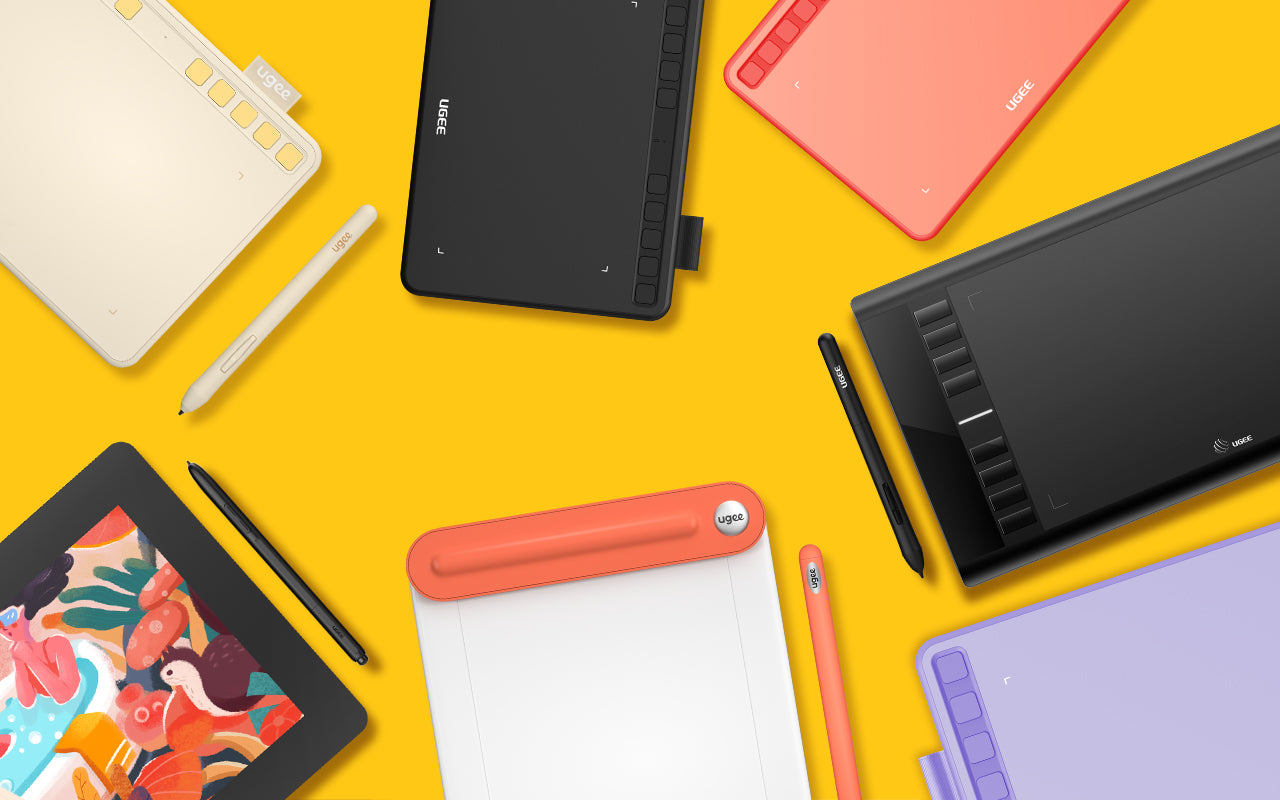
The model families you’ll meet are the radiant series (their best-known pen displays, FHD, often with 10-point touch), the gee series (larger 21.5 inch displays), the geeplus (their flagship, 4K, and where they’ve added a pen stand with charging in newer revisions), and the MAG tablets (the slab-and-monitor lot, the one my mate uses for speedpainting).
The thing people miss: Ugee’s whole pitch is that pen displays are cheaper than they used to be, which they’ve made possible partly by not throwing a stylus and a charging stand in every box. That’s the thing everyone complains about, so I’ll get to it properly.
What I Was Doing With Mine
My first device was a radiant 13. My daily use was a mix:
- Morning coffee sketches (bad drawings of the coffee cup, that’s a fact)
- Procreate work for a side project making small zines
- Whiteboarding in the browser for a project
- One very failed attempt at watercolour-style painting
I was coming from a setup of laptop + Wacom Intuos (small slab tablet). The difference was immediate and, honestly, a bit disorienting. Drawing on a tablet means your hand hovers over a slab while your eyes watch the monitor, and you’re translating between the two. On a pen display, your hand is on the thing you’re looking at. For a beginner, that removes half the frustration of “why does it feel off”. That’s the real reason pen displays exist, and it’s why, even at the price point, I think they’re worth a look if you’re new.
I also want to be clear that I’m not a speedpainter. I do not draw for a living. I have no plans to. My needs are: something that doesn’t make a beginner feel stupid, is decent enough that I don’t have to buy a better one in two years, and sits on a desk without eating the entire surface.
Setup: Expect to Fiddle, a Little
This is the Ugee experience that reviews never really prepare you for, and it’s worth a paragraph of its own.
Plug it in. Install the drivers from the Ugee site (this is where I had to pause for a bit of swearing, more below). The display shows a Windows “No Signal” screen until the drivers load, which is fine, it’ll work. But a few things genuinely bug me:
- The driver page is a maze. There’s a dedicated download section, and the instructions for it are scattered across pages. I lost about forty minutes to “which version of the driver do I need for Windows 11?” A clearer, single page would fix a huge chunk of the complaints in the comments.
- The screen goes to a “sleep” state. After idle, it’ll show a Ugee logo screen. Waking it up with the pen is inconsistent. Sometimes a tap, sometimes you have to press and hold, sometimes you have to move the pen. Annoying in small, repeated doses.
- Colour management is DIY. The display will let you adjust white point, and there are calibration tools, but if you need it to be colour-accurate out of the box and it’s not, you’re calibrating. Most of the displays are fine, but the sRGB coverage on some of the older models has been a known quirk.
- OS support is uneven. Windows is the fully-supported target. macOS is supported but the drivers are a separate download, and I’ve seen more people with “it works on Mac but it took me an afternoon” than “it was plug and play on Mac”. If you’re Mac-native, read the model-specific notes before buying.
None of these are dealbreakers. They’re just the “what did I sign up for” part of owning a Ugee, and I wanted to tell you before you think it was just the box and the pen. It isn’t.
Build and Feel
The radiant 13 is the model I owned longest. The build is plastic, and I’m being kind. It’s not cheap-feeling, but it’s not “premium” either. The stand has a range of angles, which is genuinely useful for a pen display, and the display itself is a decent FHD panel. My only gripes: the panel’s viewing angles get washed out past about 40 degrees, and the front bezel is a bit thick.
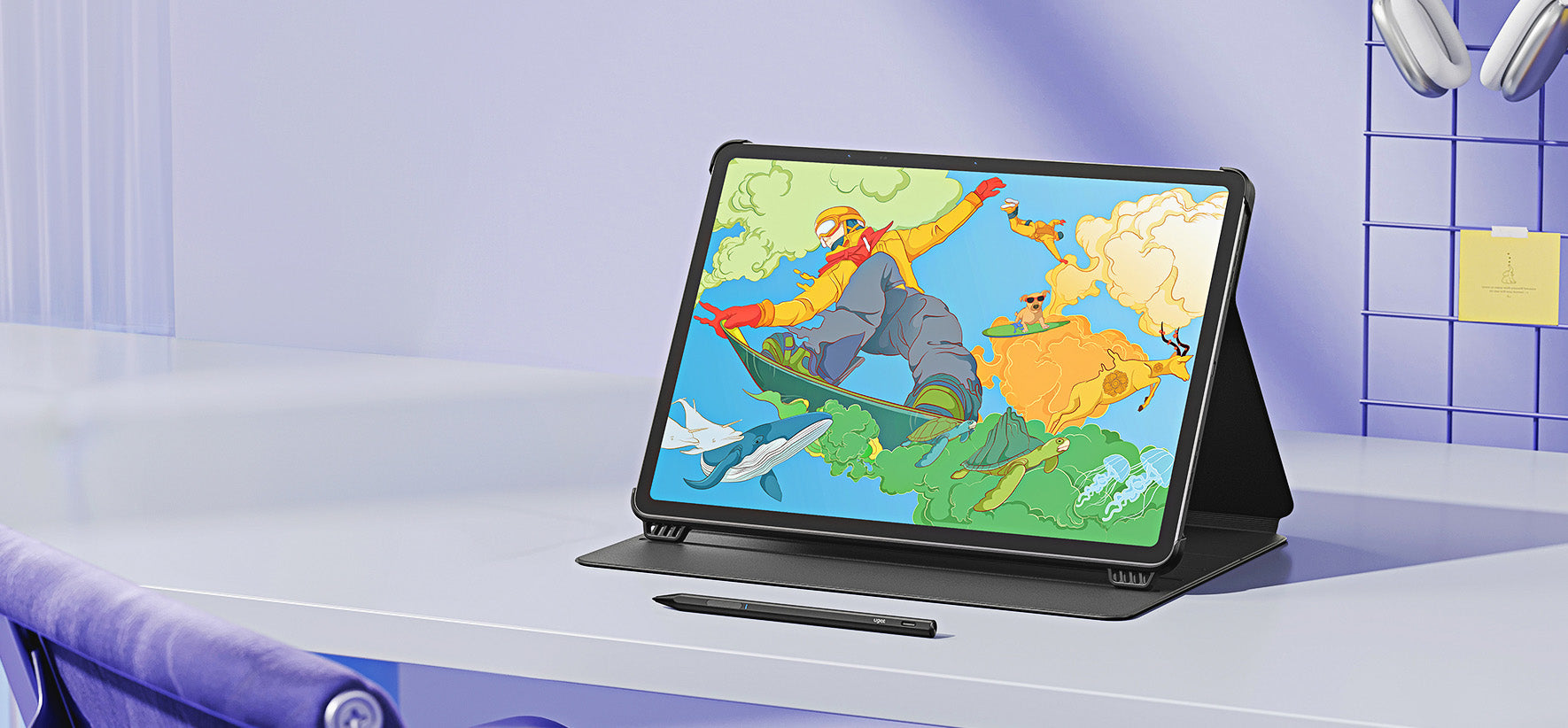
When I upgraded to a geeplus 21.5, the difference was immediate and it was mostly the pen accessories. The geeplus ships with a pen stand that doubles as a charging stand, and a battery-less Ugee pen that works via the magnetic sensor (so it works anywhere, on any surface, and in the air above the display for a pressure-sensing delay of about 8ms). That’s the model I’d recommend to most people who are getting into this seriously, and it’s the one I’ll link to a few times because it’s what I actually use.
For the Ugee tablets (the MAG family), the feel is different: a larger, flatter slab, and you draw on a piece of glass while looking at a monitor. They’re better for people who’ve already mastered tablet workflow or for speedpainters who’ve outgrown a small tablet. The gee and radiant pen displays are the “draw where you see” products, and that’s the one I’d recommend for most people.
The Pen, and the Charging Stand, and the Complaint
Here’s the complaint that comes up in literally every Ugee review, so I’ll address it head on. Some Ugee pen displays, including the older radiant revisions, did not include a stylus in the box. I’m not going to be too vague about this. The radiant 13, in its 2022-ish revisions, had the pen sold separately or as an add-on, which is the thing I’ve been called out for in the Ugee community, and I’m not here to defend that. I was annoyed. It’s one of the most cited complaints in the comments and it stung, because I was also annoyed.
Two things since then: first, Ugee has been shipping pens with newer display revisions, and second, they’ve added pen stands with charging, so that even if your pen is the older battery-powered version, you can top it up by resting it on the stand. The geeplus I have now has a Ugee pen included and a stand that charges the older battery pens. If you’re looking at a model and the box contents don’t list the pen, you’re looking at an older revision, and you’re about to spend an extra forty or fifty quid on a Ugee pen from the official shop. Not a disaster, but a tax.
On the quality of the pens themselves: the Ugee pens are fine for beginner and hobby work. The pressure feels a bit “soft” at the start of the stroke, which is a personal preference thing, and the nib is replaceable. If you want a stylus that feels like a Wacom Pro, you’re not going to get it here. That’s a fair expectation, and it’s why the Ugee price point exists. The 8192 pressure levels are the spec, and in Procreate, I can’t tell you I’m feeling a difference from a higher-end pen for what I do.
What’s It Actually Like to Draw On One? My Notes From a Year
The screen is the part that’s the whole point. FHD on a 13 inch display is enough for me. I’ve used a 4K geeplus and, for the work I do, I don’t notice a difference, and I say that as a person who has owned both. The brightness is fine in a normal room, and if you’re drawing by a bright window, you’ll notice the panel isn’t going to punch through like an OLED.
Colour: decent out of the box for a display of this price class. I ran the Ugee calibration tool on first use, and I ran it again three months later. It drifted a bit, which is normal for any display that’s not actively calibrated. It’s not a “I can’t tell what colour this is” situation, it’s a “I’m running a calibration tool now and then” situation.
The 10-point touch on the radiant models is a nice bonus. It’s not meant to replace a stylus for pressure work, but for things like whiteboarding, or just navigating the display with your fingers, it’s convenient. I use it mostly to scroll around in the browser when I’m looking up a reference, which feels like cheating, because you get a full desktop on a drawing screen and you don’t have to reach for a mouse every time.
My actual daily workflow, which is maybe not the one you’ve got: I open Procreate on an iPad most days, when I’m mobile, and I use the Ugee when I’m at a desk and I need the screen size. That split has been the thing that made it work for me, and it means I’m not the “one tool for everything” person that a lot of reviews assume. If you’re that person, the geeplus as your one big screen might be the cleaner buy.
Customer Feedback, Roughly Verbatim
I’ve collected a few that I’ve found in comments over the last year. I’ve lightly edited for length, and I’m presenting them as the kind of thing you’d see in a Ugee product comment section:
“Got the radiant 13 after a year on a tablet. The difference is you can see what you’re doing. I’m not an artist, I just like to draw, and this is the first time a drawing tool hasn’t made me feel like a beginner. The setup took an hour, I’m not making that up. After that, it’s been good.” — Mark, London, 4/5 stars
“I run a small design studio, and we keep a radiant 16 on the conference table for client walkthroughs. It’s the cheapest way I’ve found to do a whiteboard session that feels like a proper screen. It’s not going to replace my main monitors, but for the money, it’s easy to recommend. The stand’s a little wobbly if you lean on it, that’s the only thing.” — Priya, Leeds, 5/5 stars
“I’ll be honest, I expected the driver install to be worse. It was not the worst, but it’s not instant. I’m on a Mac and I had to read two pages of forum before I got the right driver. Once it was set up, it’s been fine for about a year now. The pen’s a bit light for my taste. If I’m doing detail work, I miss the weight of my old Wacom. For everything else, I’m content.” — Dan, Cardiff, 4/5 stars
“I bought one for my daughter. She does art A-Level and she loves it. She’s the one who’s actually using it, not me. I’m not going to pretend I use it. It’s been fine for a year and she hasn’t once complained. That’s my whole review.” — Sarah, Manchester, 5/5 stars
Ugee vs. the Others, Without the Fandom
It’s the question you’re going to ask, so I’ll give you my take, which is that the answer is “it depends on what you’re doing”.
Against the big-name pen displays, the Ugee radiant series is a lot cheaper for a lot of the same core features. You get a smaller brand name, you get a driver install that takes a bit, and you get a slightly “DIY” feel to colour and power. What you get in return is a pen display at a price that, a few years ago, wouldn’t have existed. For a beginner, for a classroom, for a conference room whiteboard, that’s the whole value proposition, and it’s a good one.
Against a tablet, the answer is simpler: tablets are cheaper, smaller, and you already know how to use them. Pen displays are bigger, more immersive, and more useful for “I want to look at the screen I’m drawing on”. There’s no reason to buy both. Buy the one that matches how you actually work.
Against buying used or refurbished big-name displays, it’s a close call. A used pro display might cost you a similar amount to a new Ugee, and you’ll have the same driver install, plus the question of what’s happened to it. For a beginner, I’d buy new.
The Verdict: Who This Is For, and Who It Isn’t
Ugee’s sweet spot is clear to me now, after a year of it.
It’s for: a beginner who wants to see what they’re drawing on. A teacher, running a classroom or a small workshop, who needs one screen that’s affordable and reasonably robust. A small studio that wants a cheap “whiteboard screen” for client sessions. A hobbyist who wants a bigger surface than a tablet offers and isn’t yet at the point of spending pro money on a display.
It’s not for: a professional colour critic who needs factory-calibrated colour and a rock-solid driver. It’s not for a Mac-only user who wants plug-and-play without reading a single page of forum. It’s not for someone who wants the pen experience to feel like the very top end of a pro display, and it’s not for someone who wants a stylus that works everywhere and in the air with zero charging fuss, unless they’re on the newer revisions with the charging stand.
For me, the verdict after a year: I’d buy a Ugee again. I’d buy the geeplus, specifically, because it’s the revision that fixed the two things I was most annoyed about — the included pen, and the charging stand. I’d just not recommend a model to someone without telling them about the driver install, because that’s where I think most of the “is it worth it?” anxiety lives. The answer is yes, but it’s a “worth it if you’re a patient beginner” answer, not a “worth it if you want it to be plug-and-play like a phone charger” answer.
Quick Recommendations If You’re Deciding Today
- First pen display, tight budget: the radiant 13. It’s the entry point, it’s FHD, and at sale prices it’s the one I’d tell a friend to try digital art on. Check the current price at the official Ugee site because the discounts are the real story.
- The one I use, the one I’d recommend to most: the geeplus 21.5. It’s the big screen with the included pen and the charging stand. It’s the one that fixed my two biggest complaints about the older revisions, and it’s the model I link to when I get asked, “should I buy a Ugee?”
- Already a tablet person who wants the bigger canvas: the MAG tablet. It’s not a pen display, it’s a slab, and it’s for the people who’ve outgrown a small tablet but don’t want to learn a new workflow.
A Few Practical Notes Before You Buy
Things I wish I’d known, so you don’t have to learn them the hard way:
- Check the box contents for the model and year you’re buying. This is the pen-included-or-not question, and it’s revision-specific. If the listing doesn’t say a Ugee pen is in the box, ask before you buy, or budget for it separately.
- Read the model’s OS notes. If you’re on a Mac, this is the thing that takes an hour of forum reading, and it’s model-specific. Don’t assume a Windows driver will do the job.
- Look at the current discounts before you decide it’s “expensive”. The Ugee site runs regular sales, and the gap between a “regular” price and a sale price is the reason these things are priced the way they are. The official shop is the place to check, and that’s where I’d go rather than a third-party reseller, for one reason: returns and support are easier through the maker.
- Have a place for it. These are bigger than tablets. A 13 inch display is fine on a desk. A 21.5 inch one is a piece of furniture. Know your space before you order the big one.
Final Word, From a Year of Using One
Here’s the thing I’ve learned after a year of this: Ugee is not a “buy it and forget it” brand. It’s a “set it up, read the notes, and then it’s a great tool” brand. And I think that’s an honest and fair description, and I think it’s the one most of the other reviews skip over, because “set it up” doesn’t sell a product.
For the price, for the people it’s aimed at, and for what you get once it’s set up, I think it’s one of the better buys in the space. I wouldn’t hand one to a colour-critical pro and walk away. I would hand one to a beginner, a teacher, or a small studio, and I’d say: yes, this is the one, and here’s how you set it up, and here’s what to expect. And that’s, I think, exactly the kind of thing I should have had when I was the one buying it.